The Styrhus Agent is the software on your Mac. It opens no window when it starts — it lives in the menu bar. This guide walks through setting it up step by step: the menu, connecting your devices, then boards, permissions and plugins.
1
The menu bar
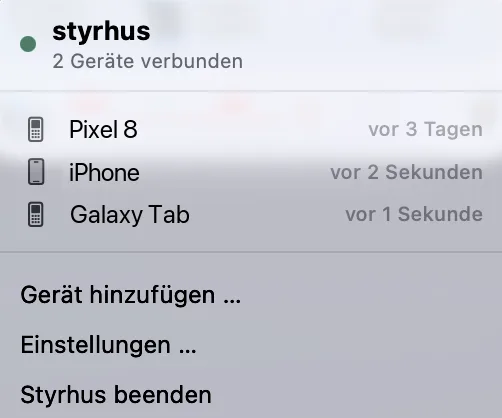
Once running, the Agent appears at the top right of your menu bar. Clicking the icon opens the menu — everything starts here.
The menu lists the paired devices and when each was last seen. "2 seconds ago" means that device is watching right now; "3 days ago" means it is paired but not currently connected.
Underneath you'll find pairing a new device, the settings — where everything else on this page happens — and quitting.
The menu shows at a glance who is watching.
2
Connecting devices
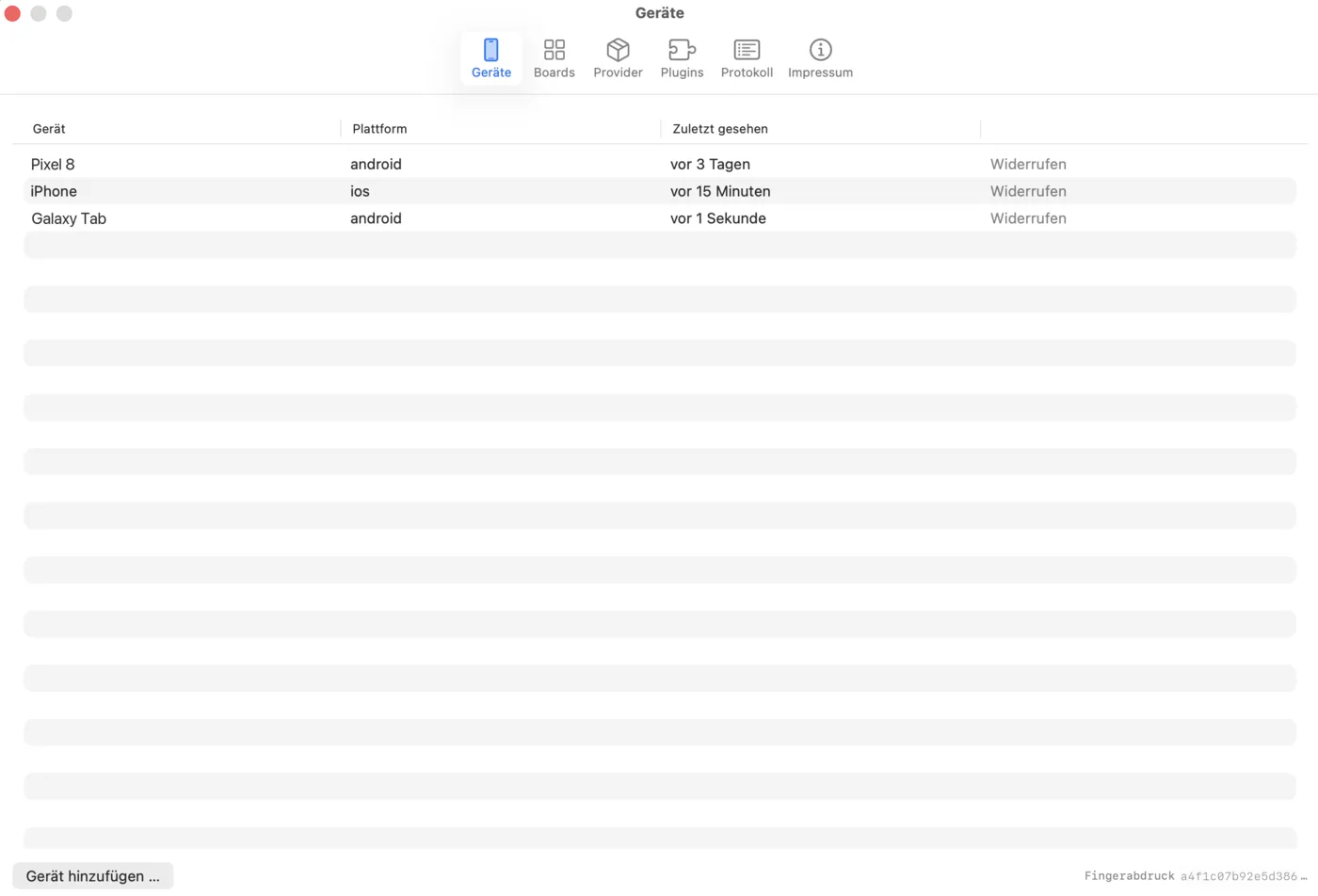
Under "Devices" you see which phones and tablets are allowed to see your Mac, along with their platform and last contact. A device you no longer want loses its access immediately via "Revoke".
At the bottom right is your Agent's fingerprint. The app shows you the same fingerprint when it first connects: if the two match, you really are talking to your Mac and not to something impersonating it.
Each device revocable on its own, without touching the others.
3
Pairing a new device
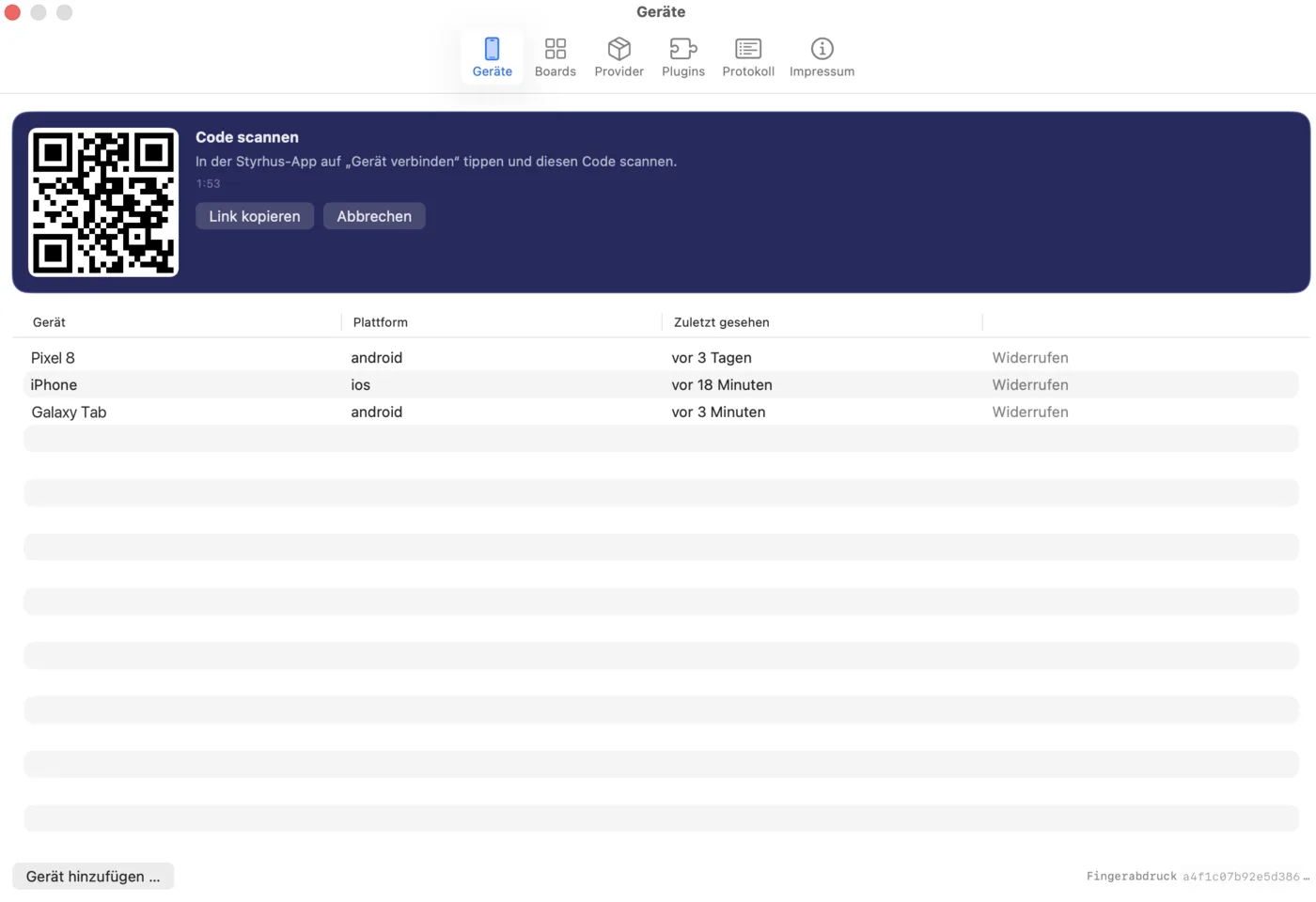
"Add device" shows a QR code. In the Styrhus app, tap "Connect device" and scan it — that's the whole pairing.
The code expires after two minutes, and the counter next to it shows how long it has left. That is deliberate: a pairing code that stays valid indefinitely is a key that eventually lies around somewhere. If it has expired, just generate a new one.
The Mac and the device have to be on the same network. The app refuses addresses outside the local network — including when someone hands it a link pointing elsewhere.
No account, no server in between: scan and you are connected.
4
Building boards
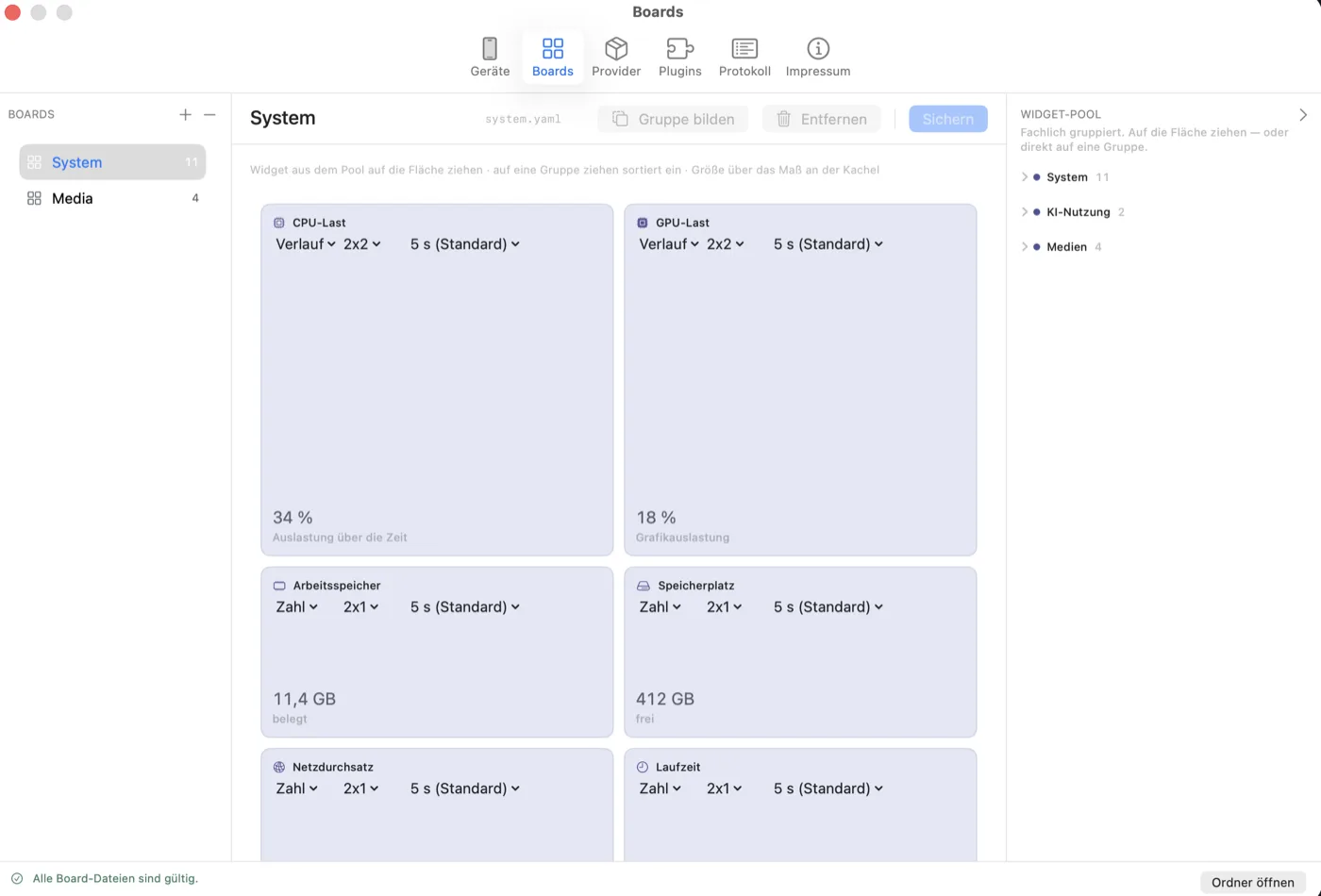
A board is one page of your dashboard. Boards are created on the left; the widget pool sits on the right, grouped by subject. Drag a widget from the pool onto the canvas — or straight onto a group, and it files itself there.
Each tile carries three settings: how it is drawn (a number or a chart, say), its size on the grid, and how often the value is fetched. Five seconds is the default; less often spares the battery of whichever device is watching.
"Save" writes the board to a YAML file, named at the top. The bottom left tells you whether every board file is valid — worth a glance after editing one by hand.
Built on the Mac — the device only displays what is arranged here.
5
Providers and permissions
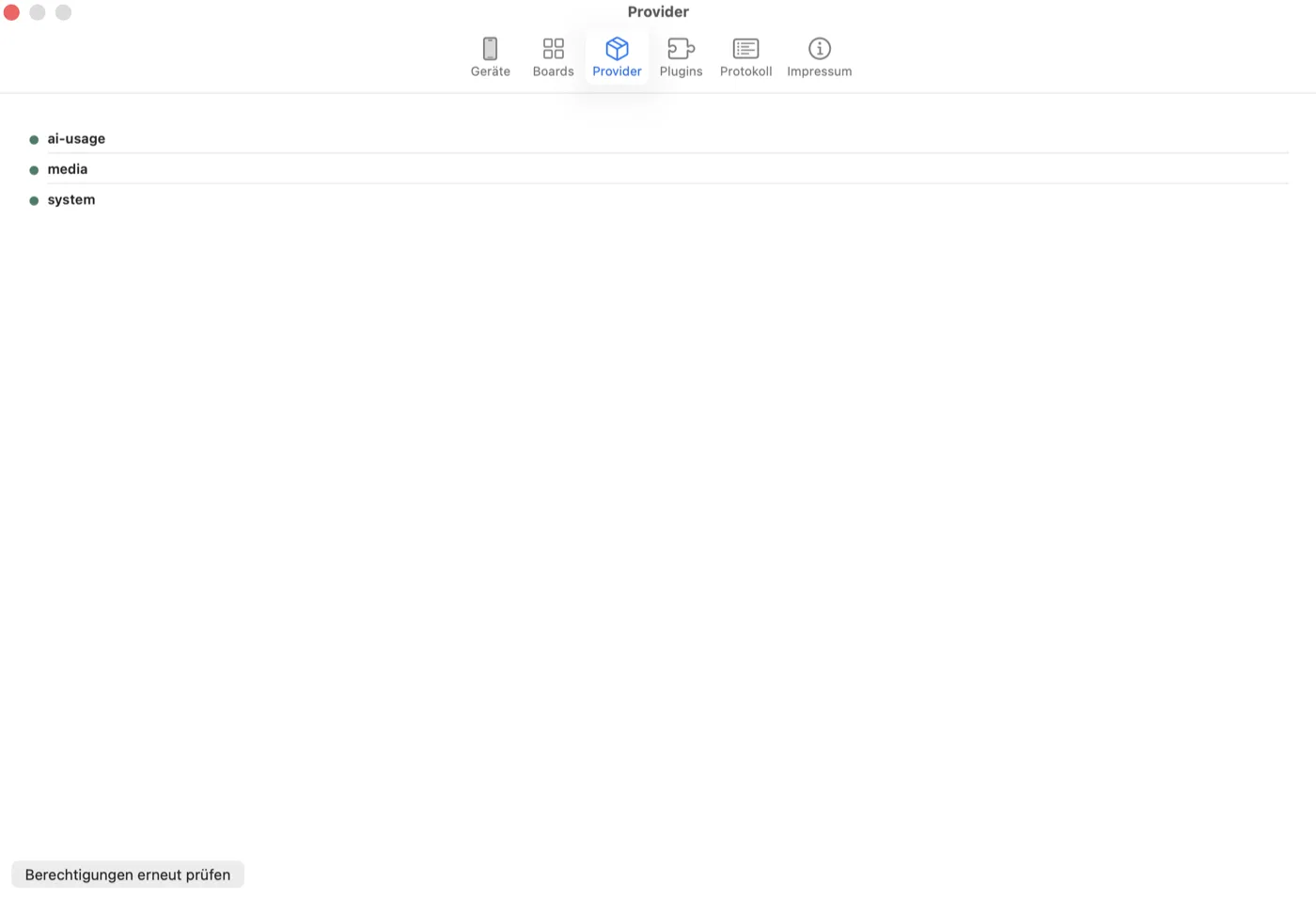
Providers are the sources the tiles read from: "system" for the Mac itself, plus one provider per installed plugin. The dot in front says whether a provider is ready to work.
The Agent does not ask for every permission at first launch. It asks one at a time, when a widget actually needs it.
Dismiss one of those dialogs and you later see a tile that never fills in, and you will think of everything except the dialog from earlier. So if something stays greyed out, grant the permission in System Settings and press "Re-check permissions" here.
A green dot means this source is allowed to do its job.
6
Installing plugins
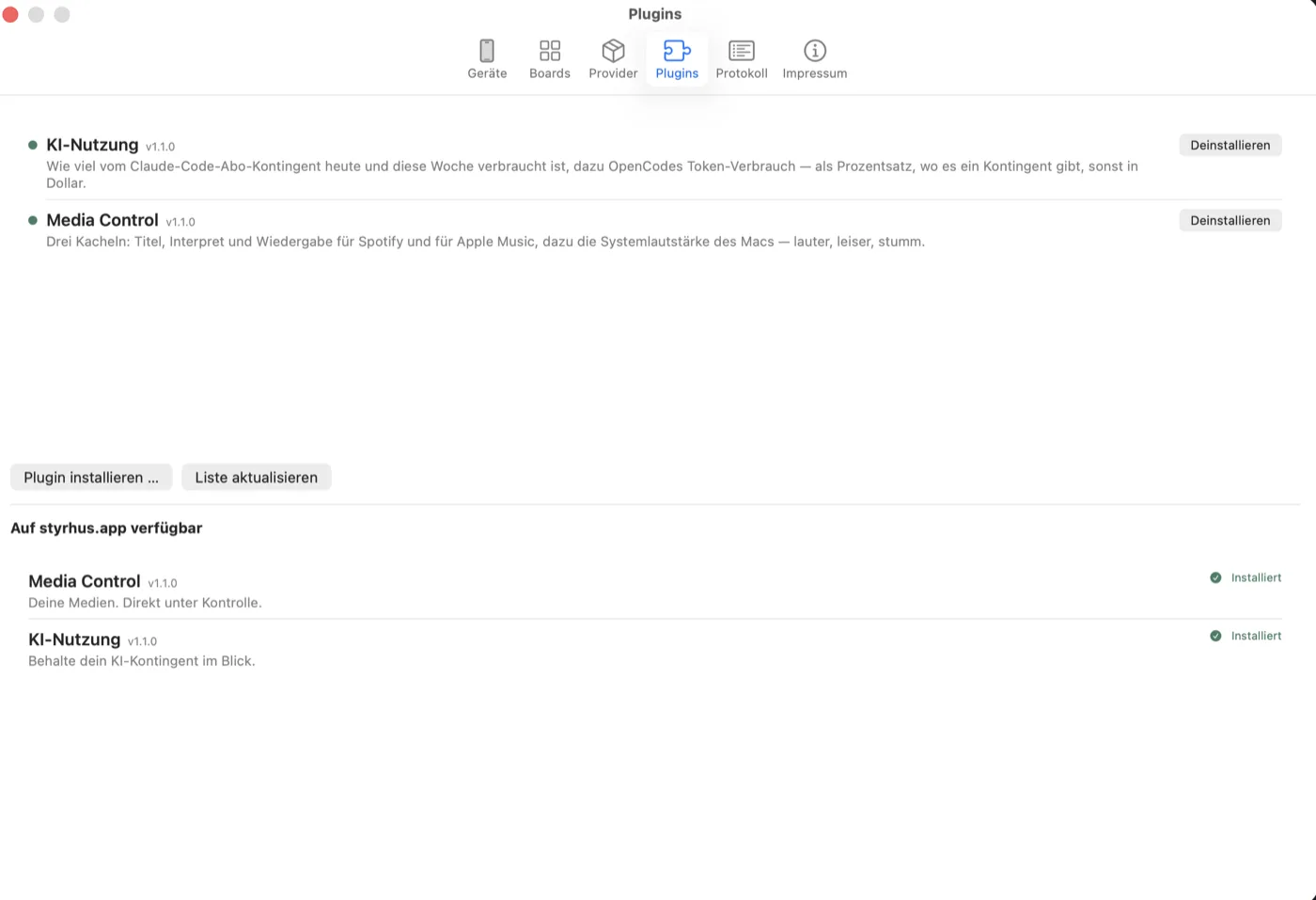
Plugins add new tiles to the Agent. Installed ones are listed at the top, each with its version and a button to uninstall it.
Below, under "Available on styrhus.app", is everything else on offer. "Refresh list" fetches the current state; anything already installed is marked as such, and where a newer version exists you see that here too. Installing happens right from this list.
The Agent checks every download against the checksum the website publishes for it before unpacking — it is executable code that then runs with your rights. "Install plugin …" is the route for a zip you downloaded or built yourself.